About location (GPS) usage
Allow the use of your location
Machiquest needs permission to use your phone's location in order to find where you are and measure the distance to each quest.
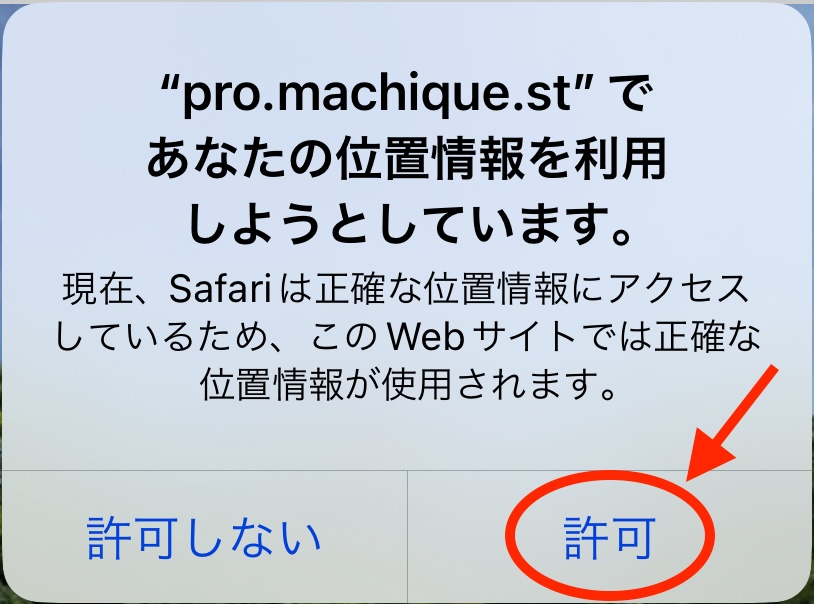
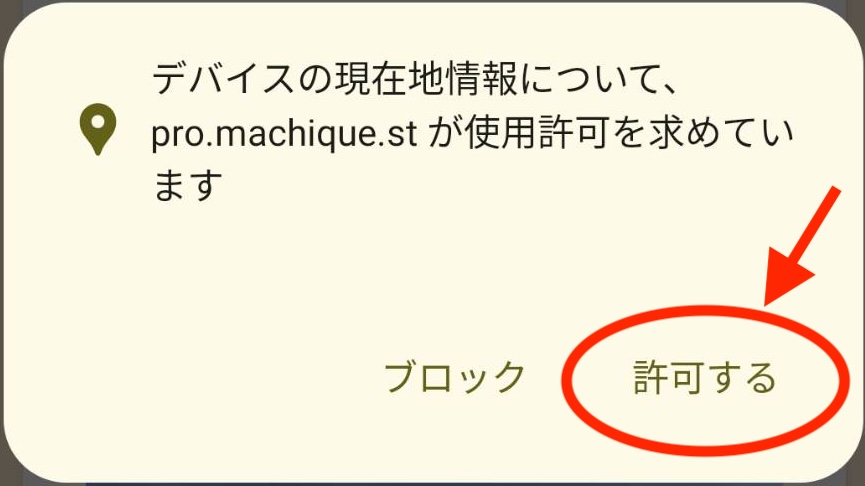
When the permission dialog appears as you open the Machiquest site in your browser, choose "Allow".
iOS (iPhone, iPad)
Android
If your location is not working
If your location is not working properly, one of the following may be the cause. Try the matching fix.
Location is not allowed on your device or in your browser (iOS)
iPhone/iPad) Enable location for Safari
1. In the iOS Settings app, open "Privacy & Security" and then "Location Services".
2. Turn on the "Location Services" switch.
3. Scroll down and open "Safari Websites".
4. Under "Allow Location Access", choose "While Using the App" and turn on "Precise Location".
5. Open Machiquest in Safari and reload the page.
6. When the location permission dialog appears, choose "Allow".
* If the dialog does not appear, or your location is not shown correctly on the map, try the following.
iPhone/iPad) Enable location for Machiquest itself
1. In Safari, tap the "AA" button to the left of the address bar to open the menu.
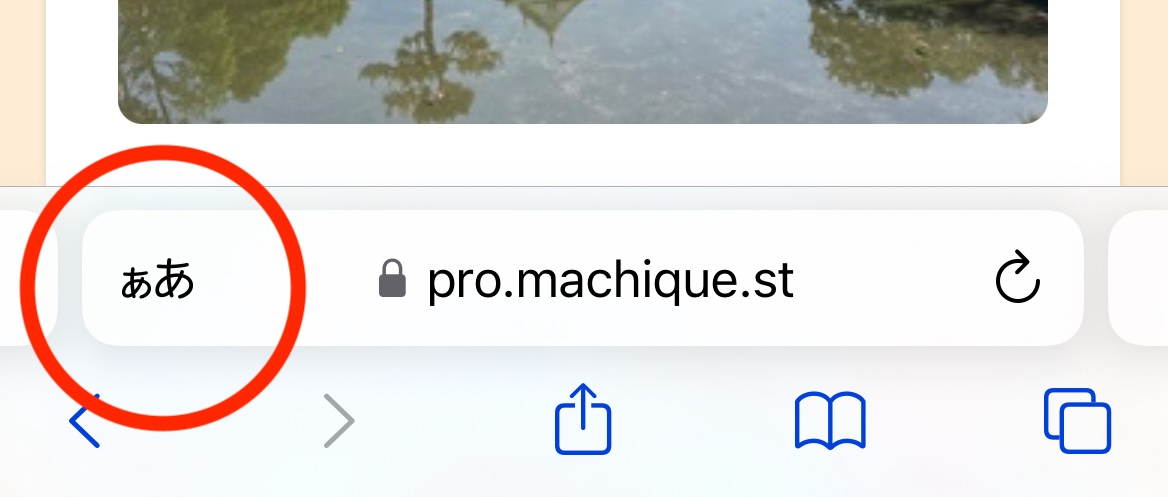
2. Tap "Website Settings".
3. Tap "Location", choose "Allow", and tap "Done".
4. Open Machiquest in Safari and reload the page.
* If your location is still not shown correctly on the map, open Settings > Safari and tap "Clear History and Website Data" to clear the cache.
Location is not allowed on your device or in your browser (Android)
Android) Enable location for your browser
1. In the Settings app, open "Location".
2. Turn on the "Use location" switch.
3. Open Machiquest in your browser and reload the page.
4. When the location permission dialog appears, choose "Allow".
* If the dialog does not appear, or your location is not shown correctly on the map, try the following.
Android) Enable location for Machiquest in Chrome
1. Open Chrome.
2. Tap the More icon at the top right to open the menu.
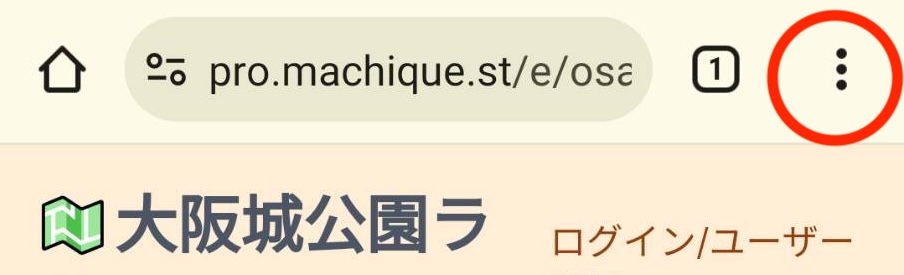
3. Choose "Settings" > "Site settings" > "Location".
4. Turn on the "Location" switch.
5. If "pro.machique.st" is in the blocked list, tap it and change it to "Allow".
6. Open Machiquest in Chrome and reload the page.
You are somewhere the GPS signal is weak, such as underground or indoors
Connect to a Wi-Fi network
Connect to a Wi-Fi network so your location can be improved using the position of the access point.
Turn on Bluetooth
Turn on Bluetooth so your location can be determined and refined from the distance to nearby beacons and their signal strength.
Your device is in power saving mode
Turn off power saving mode
While your device is in power saving mode, location updates may be paused temporarily.
Support
If your location or the distance to a quest is still not shown correctly after trying the steps above, please get in touch through the form below.
When you do, copy the contents of the device check page and paste it into "Message" so we have your device details as well.